How to Integrate Pabbly Connect with Quizify
Integration
15 Min Read
A step-by-step walkthrough for connecting Quizify with Pabbly Connect to automate your funnel submissions and sync data across thousands of apps — no code required.
Welcome to this complete guide on connecting Quizify with Pabbly Connect. Whether you want to push funnel submission data into your CRM, trigger email campaigns, or log responses in a spreadsheet — this guide walks you through everything you need to get started.
Before getting started, make sure you have at least one funnel created and published in Quizify. Once that's ready, Pabbly Connect lets you build automated workflows that trigger instantly with every new funnel submission — sending your data exactly where you need it, across thousands of apps.
Setting Up a Workflow with Quizify in Pabbly Connect
Step 1: Access Pabbly Connect from the Integrations Section
Go to Integrations from your Quizify Dashboard or Funnel Builder.
Under the Automation & CRM section, locate Pabbly Connect and click Connect.
You will be redirected to the Pabbly Connect – Quizify page (
https://connect.pabbly.com/integrations/quizify), where Quizify will already be selected as the Trigger App. .Select New Funnel Submission as the Trigger Event.
Choose the Action App where you want to send your Quizify funnel submission data.
Click Try It Now to create your workflow.

Step 2: Connect Your Quizify Account
After clicking Try It Now, your Pabbly Connect workflow will be created.
Open the Quizify trigger step. The App and Trigger Event will already be configured.
Click Connected.

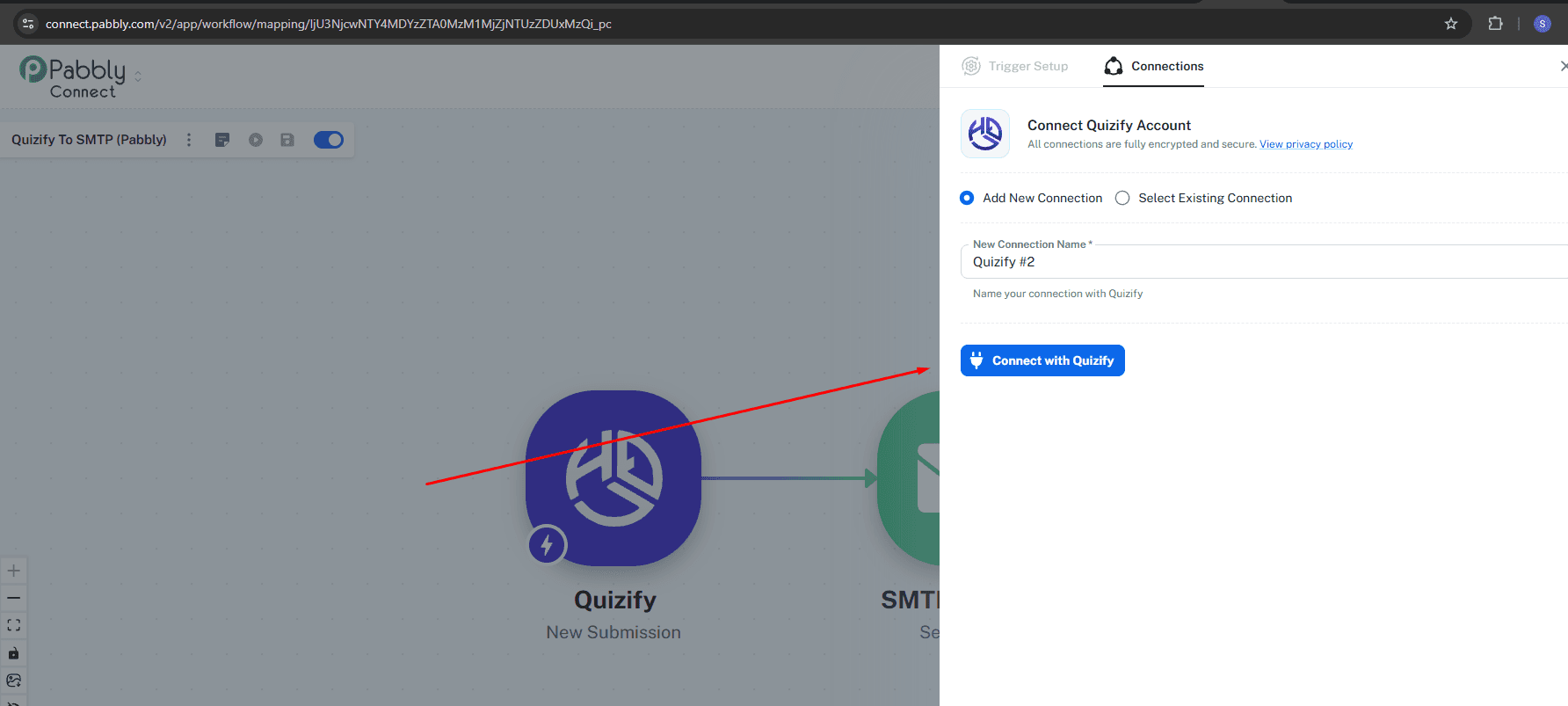
On the Connections screen, click Connect with Quizify.
You will be redirected to the Quizify authorization page. Sign in to your Quizify account if prompted.
Review the requested permissions and click Authorize.
Once authorization is complete, you will be redirected back to Pabbly Connect, and your Quizify account will be connected successfully.
Step 3: Choose Your Funnel and Test the Trigger
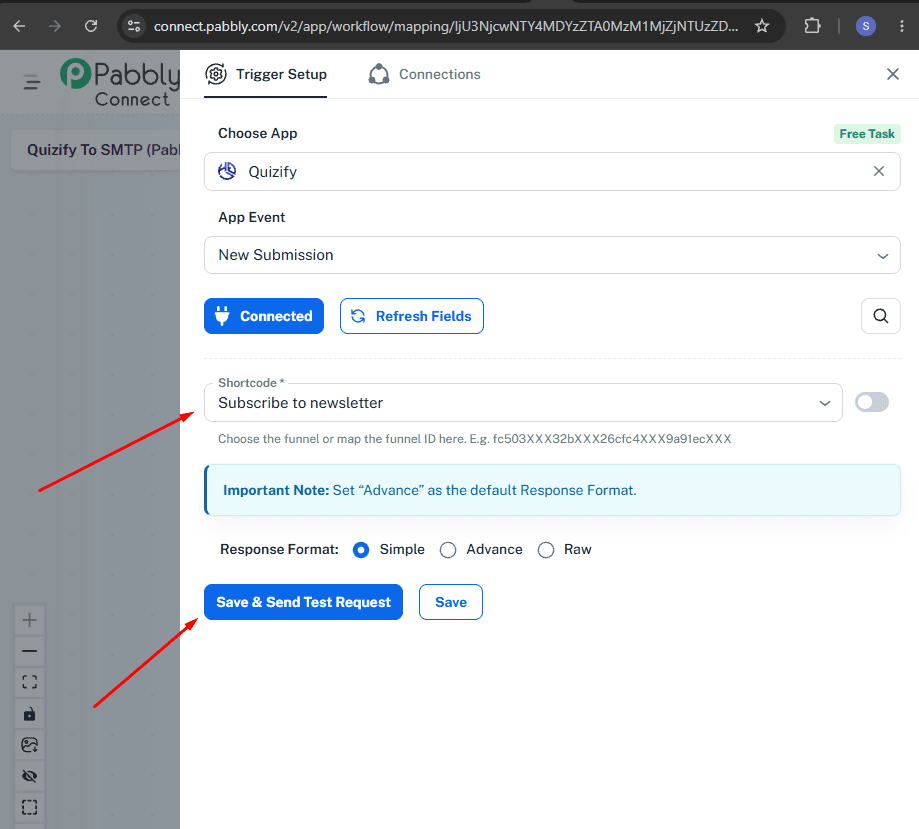
After your Quizify account is connected, select the funnel you want to use from the Funnel dropdown.
Click Save & Send Test Request.
Pabbly Connect will retrieve the most recent submission from the selected funnel.
Once the test request is successful, the submission data will appear under Response Received, confirming that your trigger is configured correctly.
Step 4: Configure the Action for Another App
Select the Action App you chose during workflow creation. If you did not select one earlier, choose the application where you want to send your Quizify funnel submission data.
Select the App Event you want to perform.
Connect your account for the selected application if prompted.
Map the Quizify fields (such as Name, Email, Quiz Result, and Answers) to the corresponding fields in your action app.
Click Save & Send Test Request to verify that the data is sent successfully.
Once the test is successful, click Save to activate your workflow.
What Data Is Sent to Pabbly Connect?
The integration syncs structured submission data to help you manage automation and analyze performance effectively. The following information is sent to Pabbly Connect with every funnel submission:
Funnel Responses — All answers submitted by the user for each question in the funnel questionnaire.
Contact Information — Name, email, and phone (if User Form collects these fields), which can be used as leads.
Result Values — Outcome details such as score, type values, and result categories (if Score or Type result logic are enabled).
Funnel Mode — The current mode of the funnel (Quiz, Survey, Form, or Assessment).
Earned Points & Total Points — Sent when the funnel mode is Assessment, indicating the points a user earned out of the total available points.
Completion Time — How long the user took to finish the funnel.
Funnel Title — The name of the funnel associated with the submission.
Conclusion
Connecting Quizify with Pabbly Connect gives you the power to automate your entire submission workflow in just a few steps. Every time a user completes a funnel, your data flows instantly to the apps and tools you already use — no manual work, no code required. Whether you're routing leads to a CRM, triggering email sequences, or logging responses for analysis, this integration keeps everything running smoothly in the background so you can focus on what matters most — growing your business.
Join our newsletter list
Sign up to get the most recent blog articles in your email every week.
Similar Topic