Connect Wix with Quizify
Integration
4 Min Read
Learn how to connect Quizify with Wix in 6 easy steps. Install from Wix App Market, embed interactive funnels, and capture qualified leads on your Wix site.

Wix makes it easy to build a beautiful site — but turning visitors into leads and customers takes more than a pretty page. That's where Quizify comes in: interactive quizzes and funnels that qualify leads, personalize the visitor experience, and feed your email list, right from your Wix site. Here's exactly how to connect the two, from installing the app to publishing your first funnel.
Step 1: Install Quizify from the Wix App Market
Open your site in the Wix Editor, go to the Apps panel, and search for "Quizify" in the Wix App Market. Click Add to Site.
The first time you install it, Quizify automatically creates your account behind the scenes — no separate signup, no password to invent.
Already have a Quizify account under the same email as your Wix site? You'll see a page letting you know, with two options: Request Access, which notifies our team to help connect things, or Contact Us. This is just to make sure you never end up with two separate accounts by accident — reach out and we'll get it sorted quickly.

Step 2: Complete the 60-Second Onboarding
The first time you open Quizify, you’ll see a quick welcome screen asking for basic setup info: your name, industry, and primary goal with Quizify.
Fill it out once, click submit, and you’ll land directly inside your Quizify dashboard. You won’t see this form again.

Step 3: Add the Quizify widget to your page
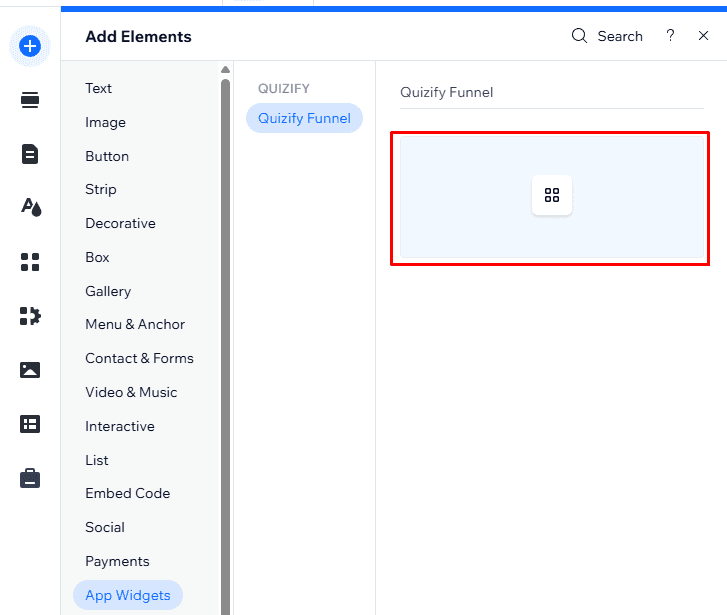
Back in the Wix Editor, open the Add Elements panel and find Quizify under your installed apps. Drag the Quizify widget onto any page — a header, a landing page, a dedicated "Take the Quiz" page, wherever it fits your design.
Tip :
Drop the widget wherever you'd naturally place a call-to-action — above the fold on a landing page tends to perform best.
Step 4: Choose your funnel
Click the widget to open its settings panel. If you already have a funnel built in Quizify, pick it from the dropdown and it's connected instantly.
Don't have one yet? The settings panel will point you straight to your Quizify dashboard to build one — pick from templates or start from scratch with drag-and-drop questions, logic jumps, and personalized results pages. Come back to the widget afterward and select your new funnel.

Step 5: Preview your funnel
Switch to Wix's Preview Mode (top right) to see your quiz in action — test questions, branching logic, and results pages just like a live visitor would.
The widget automatically auto-resizes to fit your funnel content, eliminating double scrollbars and awkward spacing.
Tip :
The live funnel only renders in Preview mode or on your published site — the plain editing canvas shows a placeholder instead. This is a Wix platform behavior, not a bug — click Preview to see it in action.

Step 6: Publish your site
Once you're happy with the placement and the funnel itself, hit Publish like you would for any other change. Your funnel is now live for every visitor.

Managing your funnels and leads
For the full Quizify experience — building funnels, viewing submissions and analytics, managing integrations — head to your dashboard. From your Wix Business Manager, go to Manage Apps, find Quizify, and click Go to External Dashboard. It opens your real Quizify dashboard in a new tab, already signed in.
Managing your plan & billing
Because you installed Quizify through the Wix App Market, your subscription and billing are handled entirely by Wix — the same place you manage your other Wix apps and site plan. From your dashboard's Plan & Billing menu, you'll be taken to Wix's own upgrade page to choose Basic, Growth, or Pro, or to manage an existing plan. There's no separate credit-card entry inside Quizify.
Final Thoughts
Interactive funnels convert up to 3x higher than standard static forms. By connecting Quizify with your Wix site, you turn passive page visitors into engaged, qualified leads on autopilot. Ready to build your first funnel? Search for Quizify in the Wix App Market and launch your quiz today!
Join our newsletter list
Sign up to get the most recent blog articles in your email every week.
Similar Topic
Related Blogs


FAQ
Frequently Asked Questions
Do I need to create a Quizify account first?
No. Installing the app from the Wix App Market creates your account automatically, using your Wix site's owner email.
I already have a Quizify account with the same email — what happens?
You'll see a page confirming the match instead of a second account being created. From there you can request access to link things up, or contact support.
Why can't I see my funnel running while I'm editing the page?
Wix's plain editing canvas is a restricted preview mode that can't render the live funnel. Switch to Preview mode, or check your published site — both work normally.
How do I upgrade my plan?
From your Quizify dashboard, open Plan & Billing — it opens Wix's own upgrade page, since that's where your subscription is billed.
What happens if I uninstall the app?
Your data isn't deleted. If you reinstall later on the same site, your account, funnels, and plan pick up right where you left off.