How to Set Up Your Branded Quiz URL in Under a Minute
Marketing and Promotion
9 Min Read
Learn how to create a custom, branded quiz URL in just a few simple steps. A personalized URL boosts brand recognition, builds trust, and makes your quizzes easier to share across websites, email campaigns, and social media.
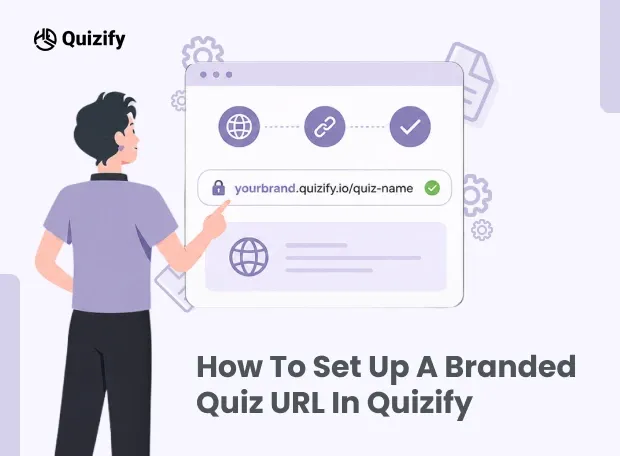
When creating a quiz, most people spend time on the questions, design, and results page. The URL is usually the last thing anyone thinks about. But it is one of the first things users see before they click.
A long URL with random numbers and characters looks messy and auto-generated. Something like https://yourbrand.quizify.io is easier to read and feels more like it belongs to the brand.
After publishing, the URL shows up in a lot of places. Emails, websites, social media posts, QR codes. A branded URL keeps things looking consistent wherever it appears.
This guide explains how to set up a custom branded subdomain in Quizify, how publishing works, and how your quiz funnel URL is used once the funnel is live.
Why a Branded URL Matters in a Quiz Funnel
A quiz funnel is not just a single page. It is a step-by-step process used to collect leads, understand user preferences, and guide people through different actions.
In most cases, users go through a few stages before they reach the final result. These usually include:
Intro Page
Questions
User Form
Result or redirect page
All of these steps run under one URL, so the way the link looks also matters.
If users see a long or unclear link, they may hesitate for a moment before opening it. Even small doubts can reduce engagement.
A branded quiz URL feels more familiar and easier to trust compared to a random-looking link.
Because of this, users are more likely to complete the quiz, which can lead to better engagement and higher completion rates.
What You Get With a Custom Subdomain
Quizify offers you a custom subdomain feature if you pick their Growth Plan which costs $29 per month.
The pattern is a simple one:
yourbrand.quizify.io This is designed to work at the level of the whole workspace rather than applying to individual funnels. That means, each funnel you make will automatically have the branded structure with no need for additional setup on your part.
Your actual URL for the published funnel will look like this:
https://yourbrand.quizify.io/funnel/[funnel-id]
This is the link that you can share through various channels such as email campaigns, websites using QR codes, social networks, and even through printed marketing materials.
How to Set Up Your Branded Subdomain
You can do the whole thing with just a few simple steps. Because Quizify automatically handles the technical side, you can generally finish the whole thing in less than a minute.
Step 1: Open Workspace Settings
To start, go to your workspace settings. You can find this on the side of your screen. Here you can set up a custom subdomain for your workspace.
Step 2: Input Your Desired Subdomain
Next type, in the subdomain name you want to use. Many companies choose their company or brand name. For example if your company is called "ABC" you could use "abc".
Some tips to make it easy:
Use letters
Don't use spaces
Keep it short and easy to remember
Quizify will add.quizify.io to the end automatically.
Step 3: Save and Activate
After you type the name just save the changes. No need to configure or do any settings or DNS. Quizify will handle everything. Your current funnel will use the branded URL immediately.
What is the Publish Tab?
Once your funnel is ready, the Publish Tab is where you control who can access it and how it's shared.
Here are the available selections:
Funnel Visibility
With this option, you can decide whether users will see the funnel or not.
Enabled: Gives users access to the funnel
Disabled: Prevents users from viewing the funnel
You can use this tool to work on and test campaigns before going live.
Share Link
This part shows your quiz funnel URL. You can use the link as a shareable item for:
Emails
Text messages
Social Sites
Website pages
Embedding on the Website
Quizify proposes an embed shortcode that immediately changes to the webpage style.
Iframe Embed
You can select the iframe for sites or situations based on HTML. Quizify encourages you to always use 600px height minimum for correct rendering.
Popup Display
The popup option gives you the chance to pick how the popup will be started:
As soon as the page loads
After the time elapses
By clicking the button
This increases user engagement and enables reliance on lead generation drives.
QR Code Generation
Quizify makes a QR Code linked to your funnel URL available for download.
Different offline places for businesses can be:
Products packaging
Shop displays
Event things
Advertisement printed
How Funnel Builder Connects With Your Published URL
Your published URL serves as the main door to the whole funnel process. All materials inside the Funnel Builder will share the branded environment.
The builder includes functionalities that will assist users go through the funnel:
Intro Page Funnels users to the beginning
Questions Allows multiple question types
User Form For submitting user data
Logic Jump Leads users to different sections as their answers
Results Shows personalized results
Email Notification For sending alerts and response emails
Because users are using the same branded URL during the whole time, they feel the experience more consistent.
Integrations Available in Quizify
Collecting responses is one part of the process. Businesses also need to find ways to organize the information they collect, manage it and use it in a way.
Quizify works with a lot of tools to help businesses automate their work and manage the people who are interested in what they do.
They have tools for sending emails, such as
Mailchimp
Klaviyo
Omnisend
Active Campaign
Brevo
MailerLite
Kit
They also have tools for managing customer relationships and automating tasks like
HubSpot
Zapier
Make
GoHighLevel
Webhooks
Quizify also works with communication tools, including
Slack
WhatsApp
They work with tools that help with analysis, such, as
Google Analytics
Meta Pixel
Google Sheets
They even work with tools that help with scheduling like
Calendly
TidyCal
All of these tools help turn the information that Quizify collects into things that businesses can actually use to make their work easier.
Plan Comparison
Different Quizify plans offer different features and capabilities. The table below provides a quick comparison of available options.
Feature | Basic (€9/month) | Growth (€29/month) | Pro (€49/month) |
Custom Subdomain | ✗ | ✓ | ✓ |
Remove Quizify Branding | ✗ | ✓ | ✓ |
Per-Funnel Integrations | ✗ | ✗ | ✓ |
Follow-up Emails | ✗ | ✗ | ✓ |
Drop-off Tracking | ✗ | ✓ | ✓ |
Customer Insights Dashboard | ✗ | ✓ | ✓ |
All plans currently include a 30-day free trial.
Conclusion
A branded quiz URL represents more than just a visual feature. It is a tool to establish a uniform and professional image all through the journey of the customers. Since every funnel, embed option, QR code, and campaign link share the same URL structure, it is a wise move to set it up early for a better branding and an easier interaction.
FAQs
1. Is changing my branded subdomain after the first setup possible?
Yes, Definitely. Updating your custom subdomain can be done through the workspace settings at any time.
2. Is it allowed for different funnels to have the same branded URL?
Different funnels of the same workspace can be made to have similar branded URL automatically.
3. Does having a branded URL help in brand consistency?
Absolutely! That's a great way to build and maintain a consistent brand identity.
4. Is a technical background necessary for accessing the platform?
Absolutely not! Quizify, in fact, manages everything behind the scenes technically without your involvement.
5. Is it possible to use the funnel URL for offline marketing?
Definitely. You can place the QR Codes printed on your offline marketing items like flyers banners brochures, and the like.
Join our newsletter list
Sign up to get the most recent blog articles in your email every week.
Similar Topic