Connect Airtable with Quizify
Integration
Min Read
Connect Airtable with Quizify to automatically sync every funnel submission, leads, responses, and results, directly to your chosen Airtable base and table.

Airtable helps you organize, track, and manage data in a flexible spreadsheet-style database. By connecting Airtable with Quizify, every funnel submission is automatically synced to your selected Airtable base and table, allowing you to manage leads, analyze responses, and maintain structured records without manual entry.
Follow these steps to connect your Quizify funnel with Airtable and start syncing responses instantly:
Step 1: Prepare Your Funnel
Create your funnel in Quizify by setting up questions and defining result logic. To collect lead information like name, email, or phone number, enable the User Form within your funnel settings. All submitted details will be captured as part of the funnel response and sent to your connected Airtable base.
Step 2: Connect Airtable with Quizify
Go to the Integrations section in your Quizify dashboard.
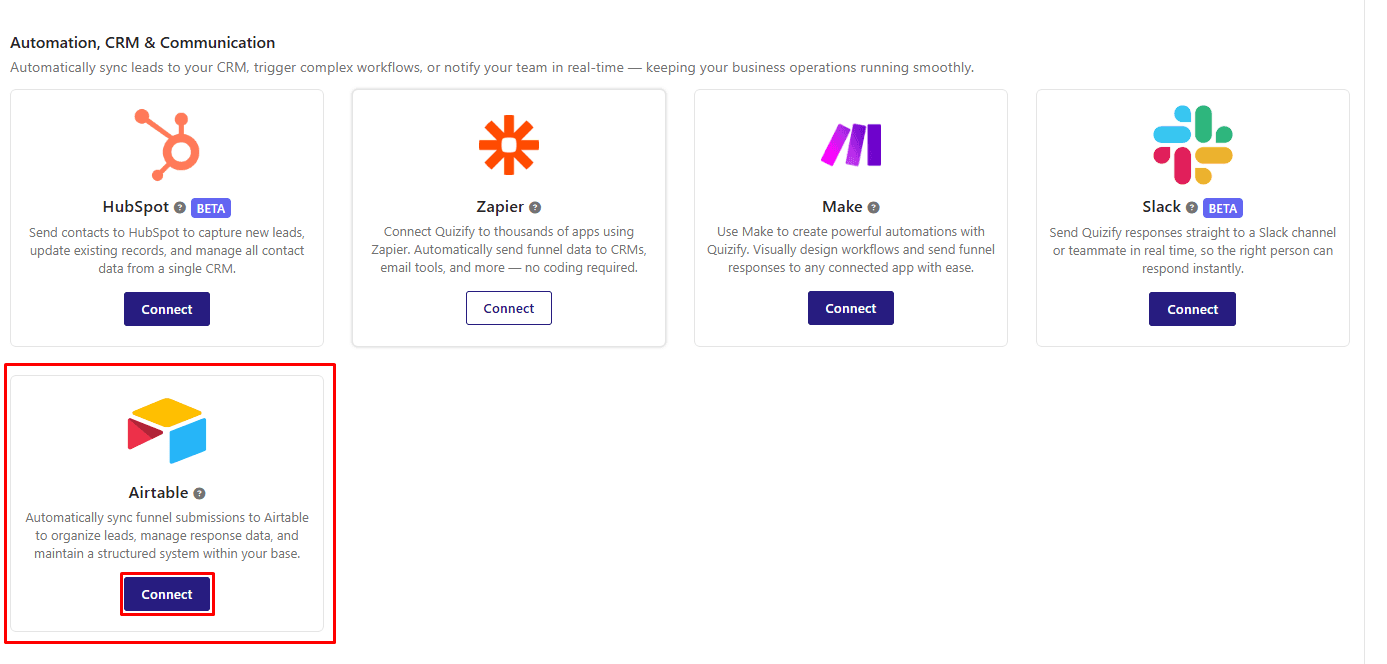
Under the Automation, CRM & Communication category, locate Airtable and click Connect.
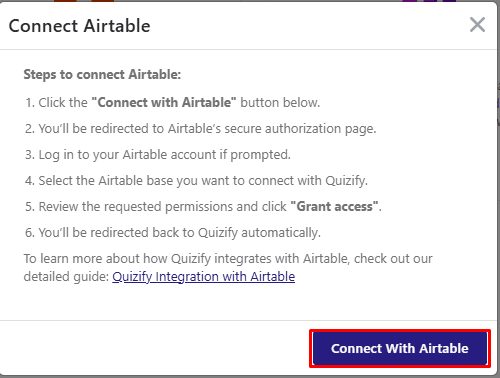
A connection window will appear. Click Connect with Airtable, and you will be redirected to Airtable’s authorization page. Review the requested permissions and approve access to complete the connection.
Step 3: Complete the Authorization Process
After logging in to your Airtable account:
Review the permissions requested by Quizify to ensure proper access for syncing your funnel submissions.
Select the workspace and base where you want your submission data to be stored.
Click Grant Access to authorize the connection.
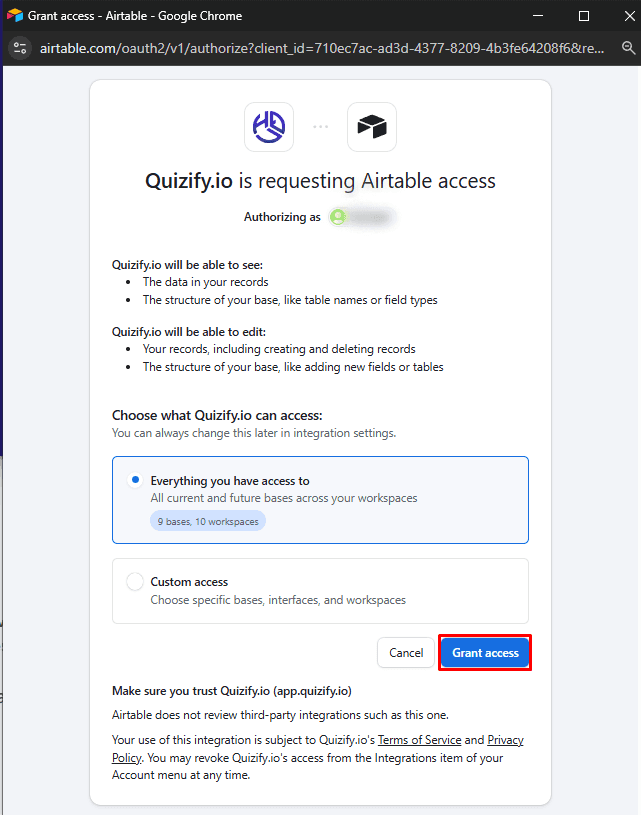
Once the authorization is completed successfully, you will be automatically redirected back to your Quizify dashboard.
Why Are Airtable Permissions Required?
To ensure your funnel submissions sync accurately and without interruption, Quizify requests the following permissions:
Access to Bases – Allows you to view and select the Airtable base where your submission data will be stored.
Read & Create Tables – Enables Quizify to check for an existing table or create a default table if one is not selected.
Create & Update Records – Allows new funnel submissions to be added automatically to your selected table.
Schema Access – Permits the creation of required columns if they do not already exist in the selected table.
These permissions are necessary to provide a smooth, automated, and structured data syncing experience between Quizify and Airtable.
Step 4: Select Your Base and Start Syncing
After successfully connecting your Airtable account:
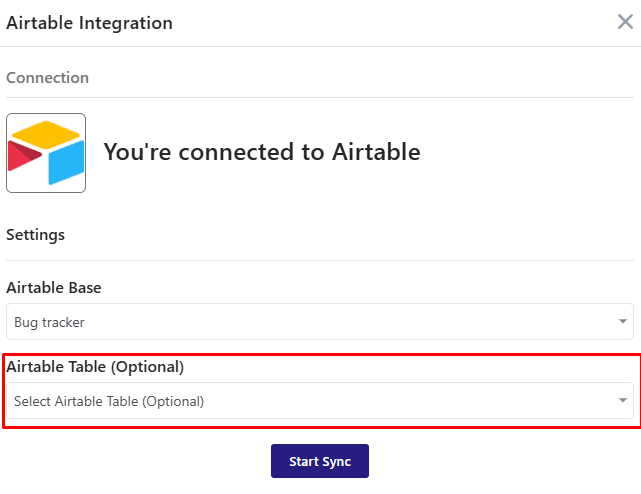
Select the Workspace Base where you want your funnel submissions to be stored.
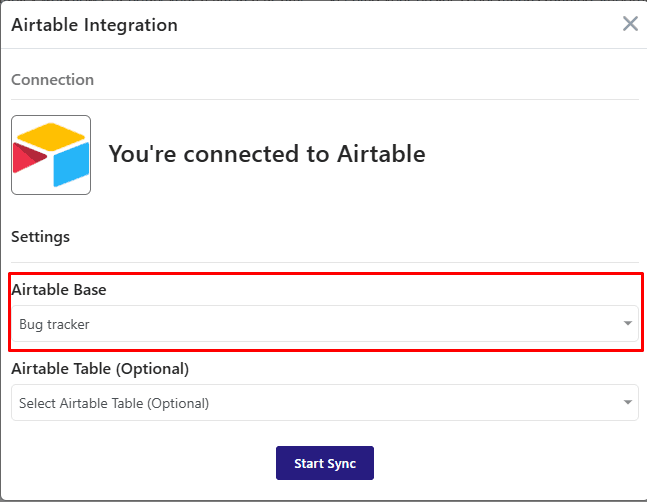
Choose the Target Table within that base where the submission data should be sent.
Click Start Sync to activate the integration.
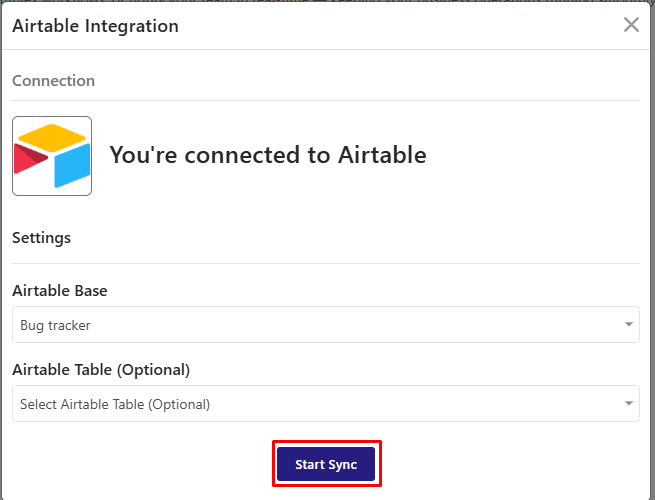
Once enabled, all new funnel submissions will be automatically synced to your selected Airtable table in real time.
What Data Is Sent to Airtable?
The integration syncs structured submission data to help you manage leads and analyze performance effectively.
The following information can be stored:
Funnel Responses – All answers submitted by the user for each question in the funnel questionnaire.
Contact Information – Name, email, and phone (if User Form collects these fields), which can be used as leads.
Result Values – Outcome details such as score, type values, and result categories (if Score or Type result logic are enabled).
Completion Time – How long the user took to finish the funnel.
Funnel Title – The name of the funnel associated with the response.
This ensures your Airtable base contains complete and organized submission records.
Pause Your Airtable Integration
If you need to temporarily stop syncing submissions:
Go to the Airtable Integration section.
Click Manage.
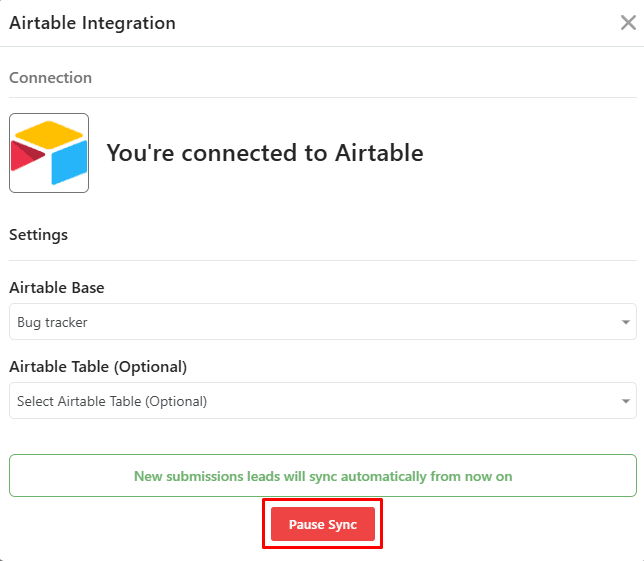
Select Pause Sync.
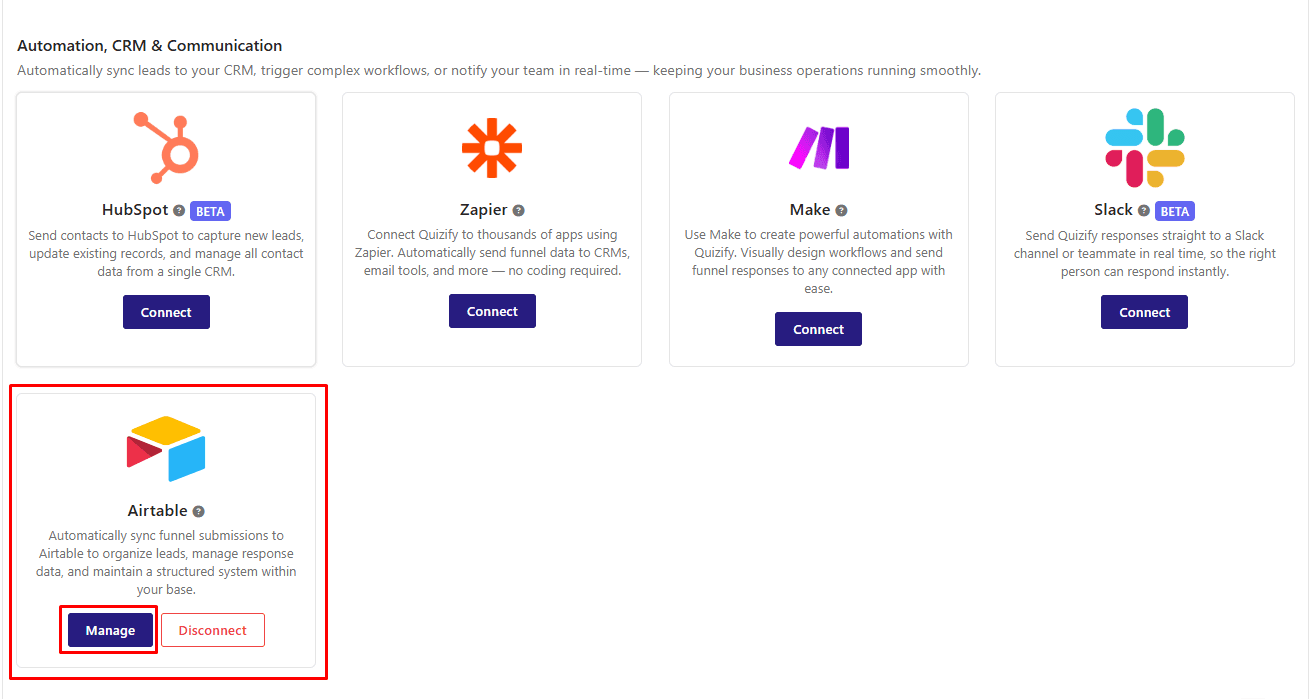
Syncing will stop immediately without disconnecting your Airtable account.You can resume syncing anytime by clicking Start Sync again.
Final Thoughts
Connecting Airtable with Quizify allows you to centralize funnel submissions in a structured and automated system. By syncing data directly into your selected base and table, you eliminate manual data entry while maintaining full control over how your submissions are organized. This enables better tracking, reporting, and workflow management inside Airtable—all powered seamlessly by your Quizify funnels.
Join our newsletter list
Sign up to get the most recent blog articles in your email every week.
Similar Topic