Connect Webflow with Quizify
Integration
4 Min Read
Embed a Quizify funnel on your Webflow site using the Quizify app — no code needed. Follow this step-by-step guide to get it live in a few minutes.

Webflow lets you install apps directly on your site, and Quizify is one of them. Once installed, you can place any published funnel on a page using a simple panel inside the Webflow Designer — there's no code to copy or paste.
Step 1: Prepare Your Funnel
Before you embed anything, build and publish your funnel in Quizify. Go to your Quizify dashboard, create your funnel, and publish it. Drafts won't show up when you go to embed on Webflow, so make sure it's published first.
Step 2: Install Quizify on Your Webflow Site
Open your site in Webflow.
Click Apps in the left panel of the Designer (or find Quizify in the Webflow App Marketplace).
Find Quizify and click Install on your site.
Approve the permissions when Webflow asks you to authorize the app.

Once installed, the Quizify panel is ready to use.
Step 3: Connect Your Quizify Account
Open Apps in the Designer and launch Quizify. The panel connects using your Webflow login automatically.
• Same email on Webflow and Quizify: you'll be connected automatically.
• Different email: log in with your Quizify email and password when asked.
• Wrong account connected: use Switch Account in the panel to log in as someone else.
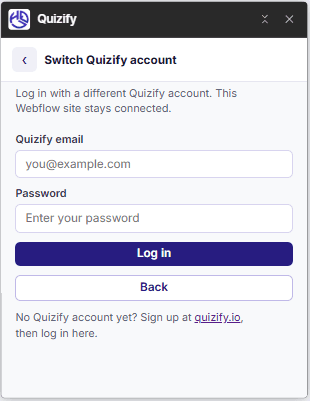
Don't have a Quizify account yet? Sign up at quizify.io, publish a funnel, then come back and log in.
Step 4: Insert Your Funnel on the Page
In the Quizify panel, choose the published funnel you want to embed.
On the canvas, select the Div Block where you want the funnel to appear.
Click Insert to place it.

You'll see a Quizify marker appear on the canvas — that's your embed. It will turn into the full funnel once the site is published.
Step 5: Publish Your Site
Click Publish in Webflow.
Open your live site URL (not the Designer preview) to check that it works.
Your funnel should now be fully interactive on the live page — visitors can start it, answer questions, and submit
Removing Quizify from Your Site
Open the Quizify panel and click Disconnect Quizify
Publish your site again so the change goes live.
If you want to use Quizify again later, just reconnect and publish.
Final Thoughts
Embedding Quizify on Webflow takes just a few clicks — install the app, connect your account, insert your funnel, and publish. No code, no scripts, and your funnel stays fully interactive on your live site.
Join our newsletter list
Sign up to get the most recent blog articles in your email every week.
Similar Topic